
CLICKS
1. General Settings (Application Configuration)
Name : This field defines the primary display name of your platform (e.g., "Lite Cashback") across the website. It is used for SEO metadata, site titles, and is reflected in all automated outgoing emails to users.
Admin Email : The central contact email for the platform's administration. This address is used as the "Sender" for system notifications and is the default contact for technical or support-related queries.
About : A multi-language text area (EN, AR, HI) where you define the site's value proposition. This content appears on the frontend to explain the service and helps improve SEO by using relevant keywords like "coupons" and "deals."
Upload Logo : The primary branding asset for the platform. This image is displayed in the website header and on transactional emails to ensure brand recognition and build user trust.
2. Media & Visibility (Store Assets)
Logo: The brand icon specific to an individual merchant or store. It appears on store cards, search results, and offer sections to help users quickly identify their favorite brands while browsing.
Banner Image: A large hero image used on the dedicated store detail page. It enhances the visual appeal of the merchant’s profile and provides a space to showcase brand-specific lifestyle imagery or promotional themes.
3. User Payouts (Withdrawal Management)
Payout Details (ID, User, Amount): This section tracks the unique identification of a withdrawal request, the user's email, and the specific monetary value they wish to cash out from their "Confirmed" balance.
Payment & Status: Displays the user's chosen method (e.g., Bank Transfer, PayPal), their account details, and the current state of the request (Processing, Completed, or Declined).
Action & References: Administrative tools to update the request status and add a "Ref Number" (Reference ID) once the payment is made. This provides a digital paper trail for both the admin and the user.
4. User Earnings (Transaction Tracking)
Order & Cashback: Lists the "Order Amount" (total spent at the store) and the resulting "Cashback" (the reward amount credited to the user). This allows admins to verify if the reward calculation matches the store's commission rate.
Status & Network: Shows whether an earning is "Pending" or "Confirmed" and identifies the affiliate "Network" (e.g., VCommission) that reported the sale. This is crucial for reconciling platform data with third-party affiliate reports.
Click Code & Time: Displays the unique tracking ID generated at the time of the click and the exact "Transaction Time." This data is essential for troubleshooting missing cashback claims and verifying user activity.
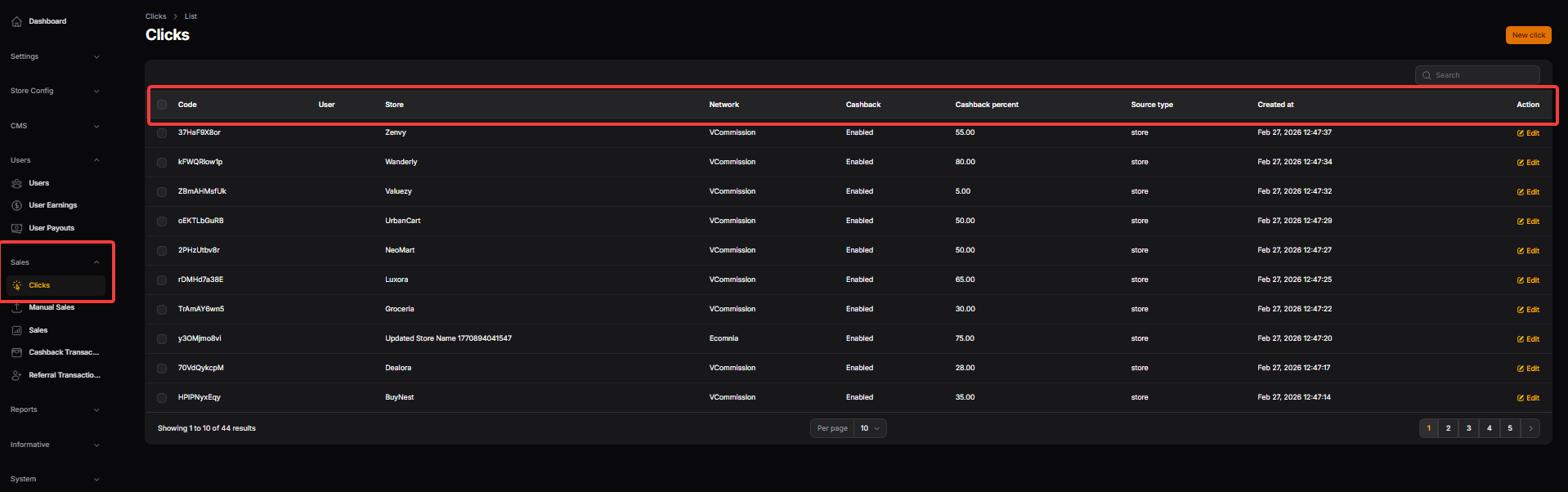
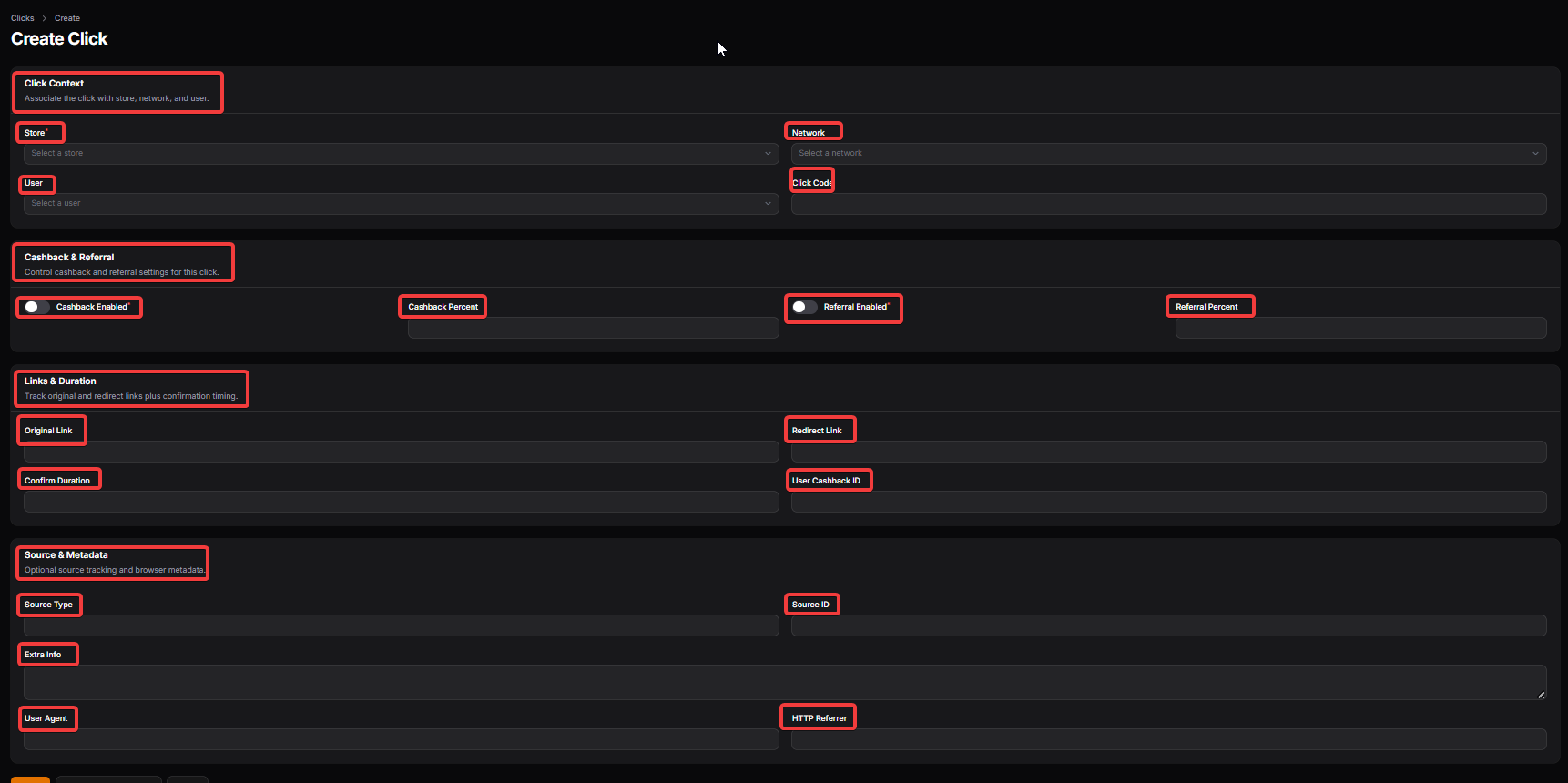
5. Create Click (Manual Tracking & Context)
Click Context (Store, Network, User): Associates a specific outbound click with a merchant, an affiliate network, and a registered user. It creates the fundamental link needed to track a user's journey from your site to the merchant.
Cashback & Referral: Toggle switches to enable or disable rewards for a specific click. It allows admins to set custom "Cashback Percent" or "Referral Percent" overrides for specific marketing campaigns or user groups.
Links & Duration: Tracks the "Original Link" (merchant URL) and the "Redirect Link" (affiliate tracking URL). The "Confirm Duration" helps the system estimate how long it will take for the transaction to move from pending to confirmed.
Source & Metadata: Captures technical data such as "User Agent," "Source ID," and "HTTP Referrer." This information is used for advanced debugging and to identify which traffic sources or devices are driving the most conversions.
MANUAL SALES
Based on the provided admin panel screenshots for EnactCashback-Lite, here are the descriptions for each annotated section to be used in your documentation.
1. General Settings (Application Configuration)
Name (1): This field defines the official brand name of your cashback portal. It is used globally across the site for SEO titles, browser tabs, and as the sender name in system-generated emails.
Admin Email (2): The primary contact email for the platform's administration. This address serves as the "From" address for outgoing user notifications and the default destination for system alerts.
About (3): A multi-language content area (EN, AR, HI) where you describe your service. This text appears on the frontend to build user trust and provides critical keywords for search engine indexing.
Upload Logo (4): Allows you to set the primary visual identity of the platform. This logo is displayed in the website header and on all transactional emails to ensure a consistent professional appearance.
2. Media & Visibility (Store Assets)
Logo: The brand-specific icon for an individual merchant. It is displayed on store cards and offer sections to help users quickly identify their favorite brands while browsing.
Banner Image: A wide hero image used specifically on the merchant’s dedicated store page. It enhances the visual appeal of the store profile and provides space for lifestyle or promotional imagery.
3. User Payouts (Withdrawal Management)
User & Amount: Tracks which registered user is requesting a withdrawal and the specific monetary value. It allows admins to verify if the user has a sufficient "Confirmed" balance for the request.
Payment Method & Account: Displays the user's chosen payout channel (e.g., Bank Transfer, PayPal) and their specific financial details. This ensures funds are sent to the correct destination.
Status & Action: Provides a real-time lifecycle state (Processing, Completed, Declined) and administrative buttons to manage the request. This is the primary tool for finalizing financial transfers.
4. User Earnings (Transaction Tracking)
Order Amount & Cashback: Records the total purchase value at the merchant and the resulting reward calculated for the user. This data is essential for auditing the accuracy of affiliate commissions.
Status & Network: Indicates if an earning is "Pending" or "Confirmed" and identifies the affiliate network (e.g., VCommission) that reported the sale. This helps in reconciling data with third-party partners.
Click Code & Transaction Time: Displays the unique tracking ID for the user's click and the exact time of the sale. These are the primary data points used to resolve "Missing Cashback" claims from users.
5. Create Click (Manual Tracking)
Click Context: Associates a click with a specific store, network, and user. This section manually builds the tracking link that connects a user's session on your site to their purchase on a merchant's site.
Cashback & Referral Settings: Allows admins to toggle rewards and set custom percentage rates for a specific click. This is useful for creating unique promotional links or high-tier influencer rewards.
Links & Duration: Tracks the original merchant URL and the final redirect tracking link. It also sets the "Confirm Duration," estimating how many days until the cashback moves from pending to confirmed.
Source & Metadata: Captures technical details like "User Agent" and "HTTP Referrer" for the click. This metadata is vital for debugging tracking issues and identifying the device or source of the traffic.
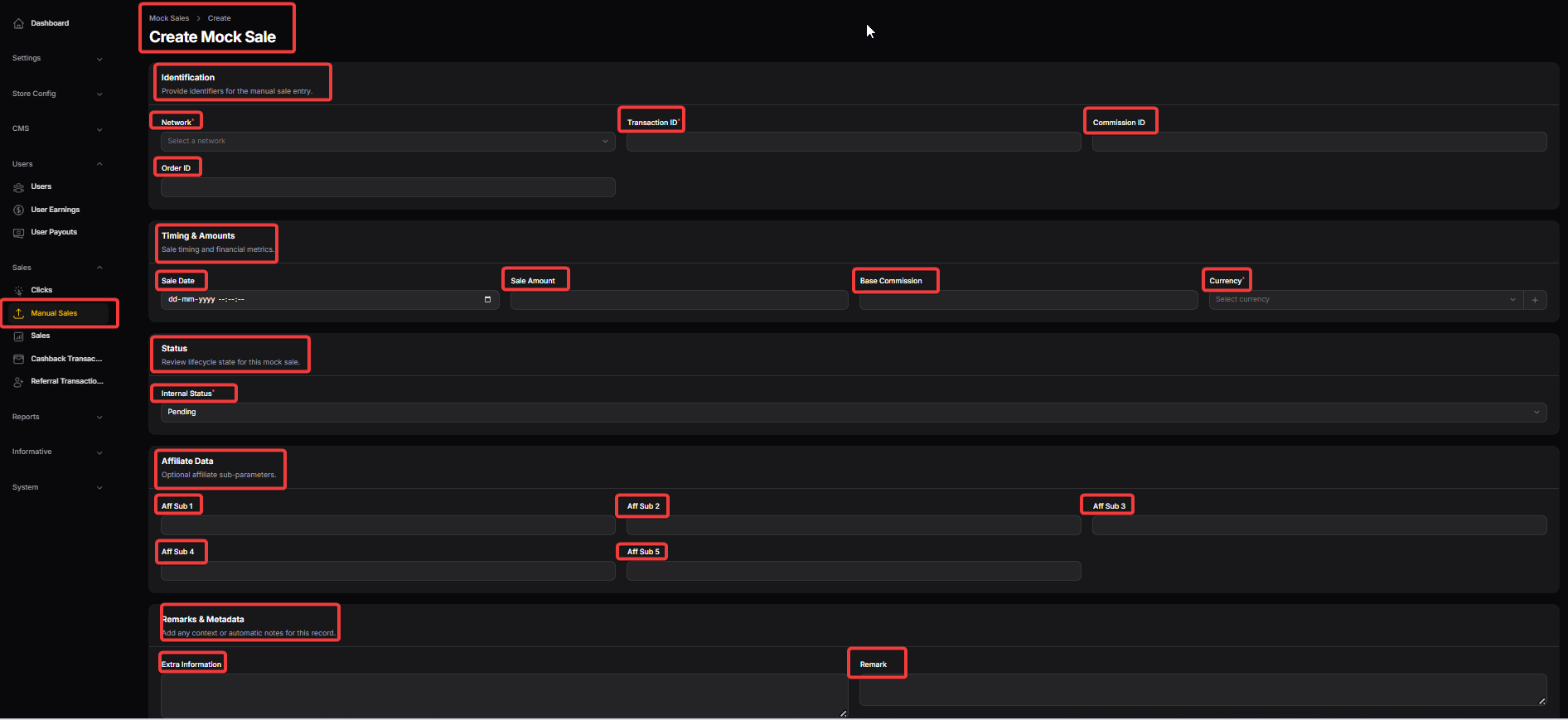
6. Create Mock Sale (Manual Transaction Entry)
Identification: Used to manually input transaction details reported by networks that weren't captured automatically. It requires a Network, Transaction ID, and Commission ID to verify the record.
Timing & Amounts: Sets the specific date of the sale and the financial metrics involved, including Sale Amount and Base Commission. This ensures the user is credited the correct amount in the chosen currency.
Status & Affiliate Data: Controls the internal lifecycle of the mock sale (e.g., Pending) and allows for "Aff Sub" parameters. These sub-IDs help in detailed tracking and organizing data for complex affiliate campaigns.
Remarks & Metadata: A section for adding internal notes or extra context regarding why a manual sale was created. This provides a clear audit trail for other administrators reviewing the transaction logs.
SALES
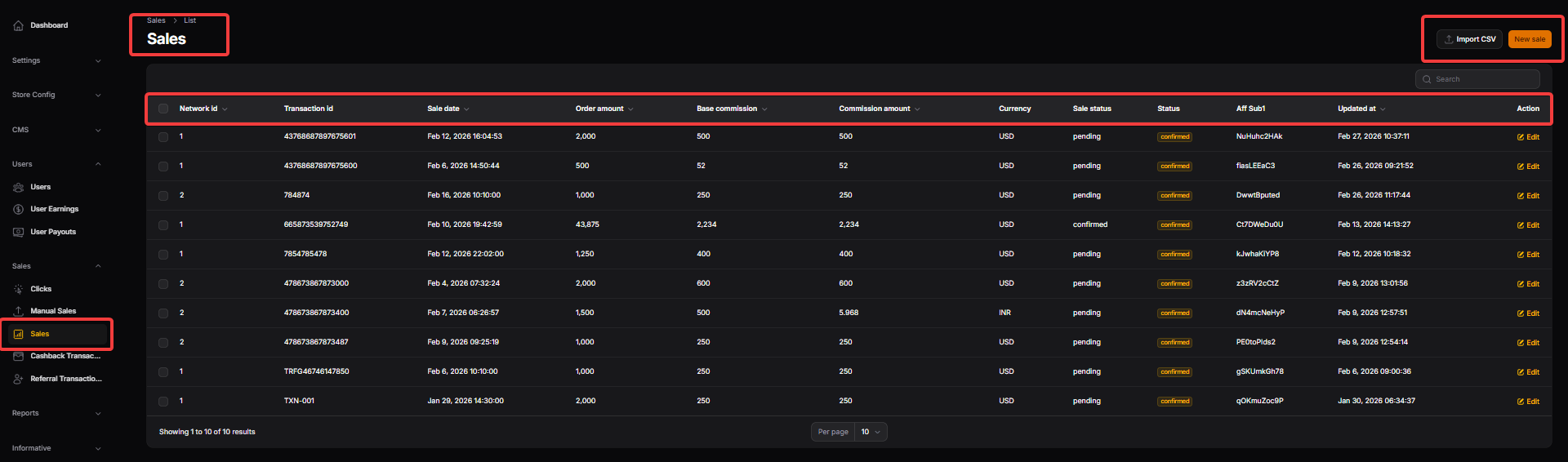
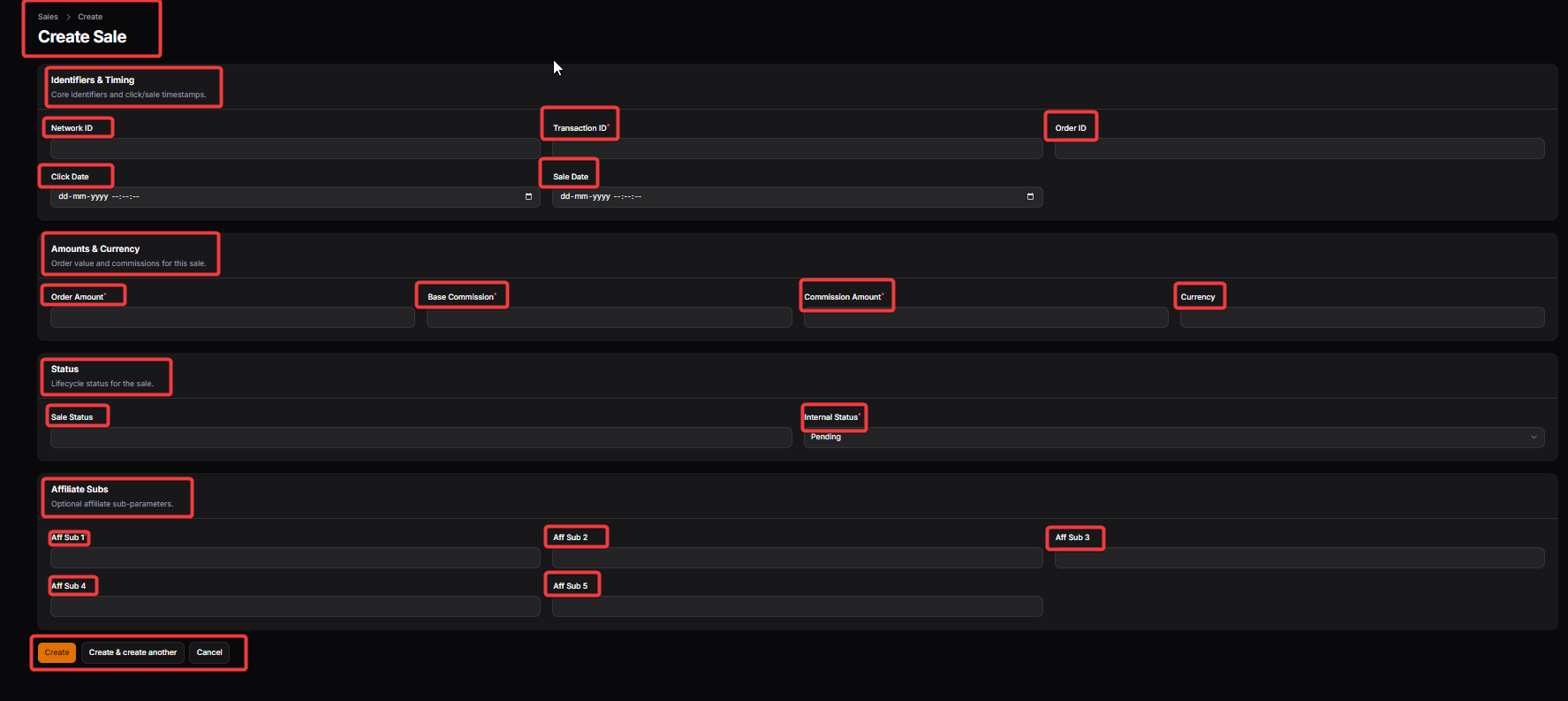
The following is a breakdown of the annotated sections from the EnactCashback-Lite admin panel, organized by their functional modules for your documentation.
1. General Settings (Global Configuration)
Application Identity (1 & 2): Defines the core identity of the platform by setting the "Lite Cashback" name for SEO and branding, alongside the primary Admin Email used as the "from" address for all system-generated notifications.
About Section (3): Provides a multi-language (English, Arabic, Hindi) description of the site’s value proposition, helping users understand the service while improving search engine indexing for terms like "coupons" and "discounts".
Logo Management (4): Acts as the central hub for branding, allowing admins to upload a cropped, high-quality logo that appears in the website header and across all professional email communications.
2. Media & Visibility (Store Branding)
Logo: The brand-specific icon for an individual merchant, which is critical for visual recognition on store cards, search results, and offer sections to build user trust.
Banner Image: A high-impact hero image displayed on the merchant’s dedicated store page, designed to enhance the page's aesthetic and showcase brand-specific lifestyle or promotional imagery.
3. User Payouts (Financial Management)
Payout Details: Tracks the withdrawal lifecycle by linking a specific User email to a requested Amount, allowing admins to verify available "Confirmed" balances before initiating a payment.
Payment & Status: Displays the user's chosen channel (e.g., Bank Transfer, PayPal) and their financial account details, while providing a real-time status indicator (Processing, Completed, or Declined) for administrative tracking.
Action & Reference: Provides administrative controls to finalize requests and a "Ref Number" field to input bank or gateway transaction IDs, ensuring a digital paper trail for every successful payout.
4. User Earnings (Transaction Auditing)
Monetary Metrics: Displays the "Order Amount" and the resulting "Cashback" earned, allowing for quick verification that user rewards align correctly with the merchant's agreed commission rates.
Lifecycle & Source: Shows whether an earning is currently "Pending" or "Confirmed" and identifies the third-party affiliate Network (e.g., VCommission) responsible for reporting the sale data.
Tracking Logs: Records the unique Click Code generated at the time of the user's visit and the exact Transaction Time, which are the primary data points used to resolve user claims for missing cashback.
5. Create Click (Traffic Tracking)
Click Context: Manually associates a click event with a specific Store, Network, and User to establish the digital link required for affiliate tracking to function correctly.
Reward Controls: Provides toggles to enable or disable "Cashback" and "Referral" rewards, allowing admins to set custom percentage overrides for specific marketing campaigns or high-value users.
Links & Redirects: Tracks the original merchant URL and the final tracking redirect link, while setting the "Confirm Duration" to estimate the time required for a transaction to move out of the pending state.
Metadata Logs: Captures browser-level data such as User Agent and HTTP Referrer to help technical teams debug tracking issues and identify which devices are driving the highest conversion rates.
6. Sales Management (Manual & Mock Entries)
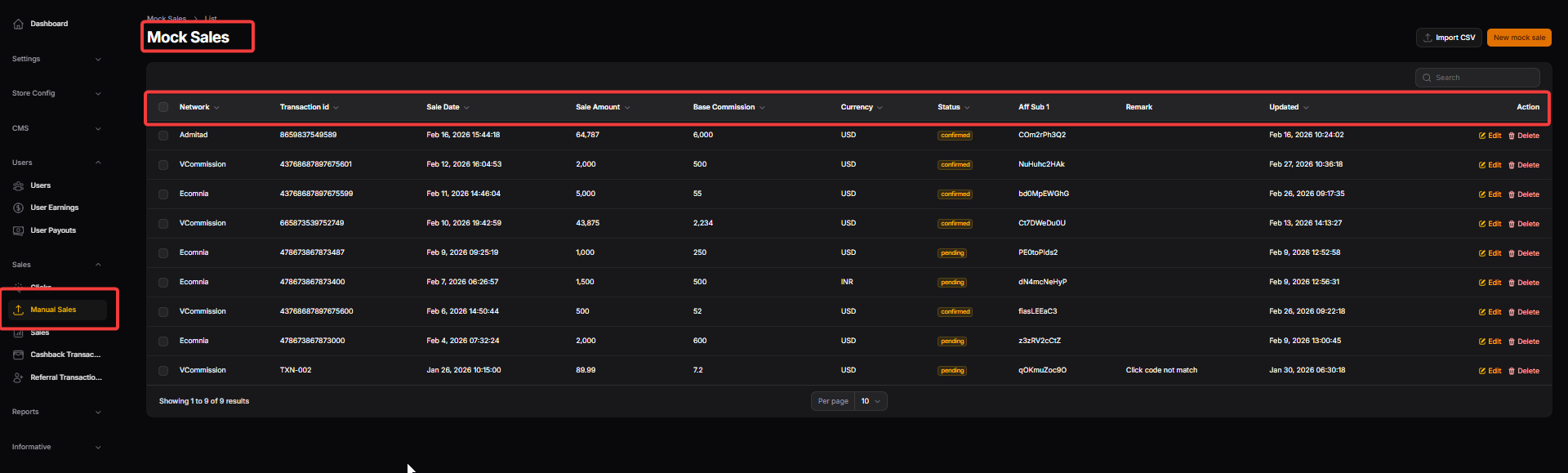
Identification (Mock & Manual): Used to input transaction identifiers like Network ID and Transaction ID for sales reported by partners that were not automatically captured by the system.
Timing & Amounts: Defines the financial scope of a sale, including the total Order Amount, Base Commission, and Currency, ensuring the user is credited the exact reward regardless of the tracking source.
Internal Status: Allows admins to manually set the lifecycle state of a transaction (e.g., Pending) to reflect its current progress within the affiliate network's reconciliation period.
Affiliate Sub-Parameters: Provides fields for "Aff Sub" 1 through 5, enabling granular tracking for complex marketing campaigns where specific sub-IDs are required to identify influencers or traffic sources.
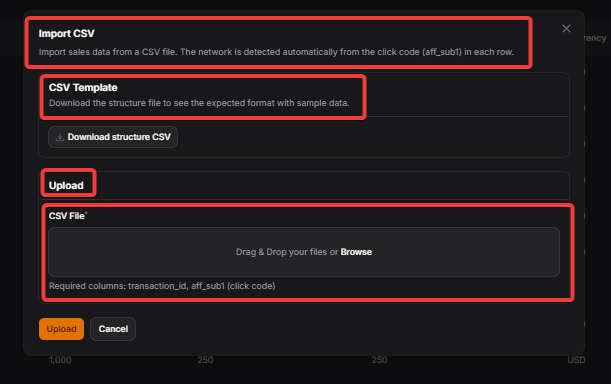
Upload CSV File: A dedicated upload area where you provide the transaction report provided by your affiliate partners. The system uses this file to process hundreds of transactions at once rather than manual entry.
CASHBACK TRANSACTIONS
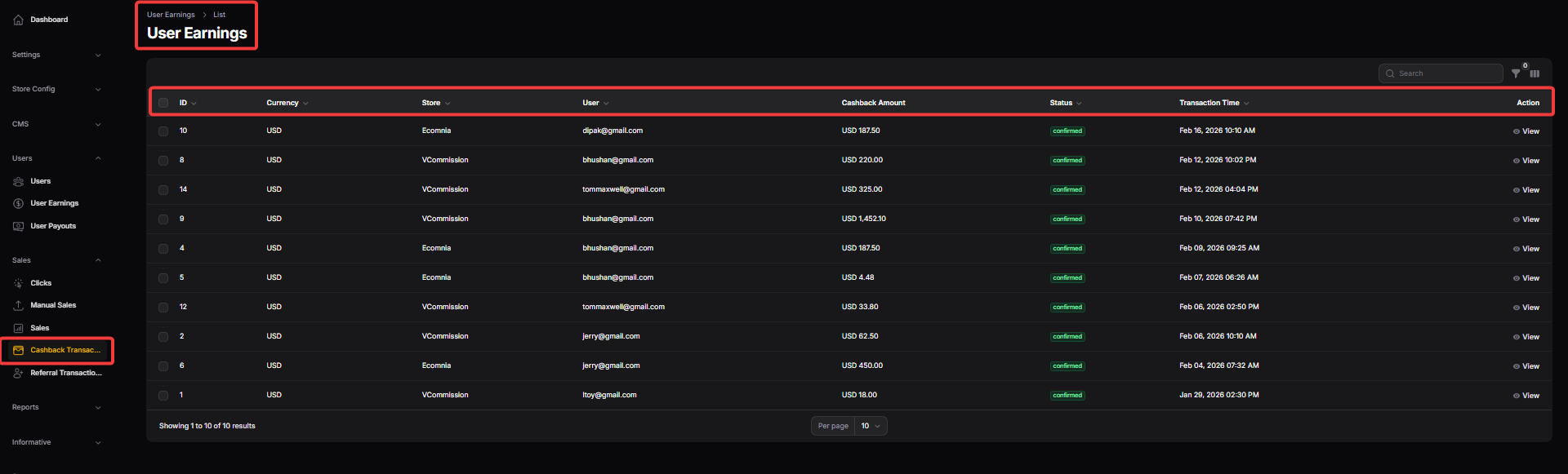
ID: A unique numerical identifier assigned by the system to each individual earning record for easy referencing and tracking.
Currency: Specifies the type of currency (e.g., USD) in which the order was placed and the cashback was calculated.
Store / Network: Displays the specific merchant or third-party affiliate network (e.g., VCommission or Ecomnia) where the purchase was made.
User: The registered email address of the shopper who completed the transaction and is eligible for the reward.
Cashback / Cashback Amount: The specific monetary reward credited to the user's account based on the merchant's commission rate.
Status: Indicates the current stage of the earning, such as Pending (awaiting network verification) or Confirmed (ready for withdrawal).
Transaction Time: The exact date and timestamp when the sale was recorded by the tracking system.
REFERRAL TRANSACTIONS
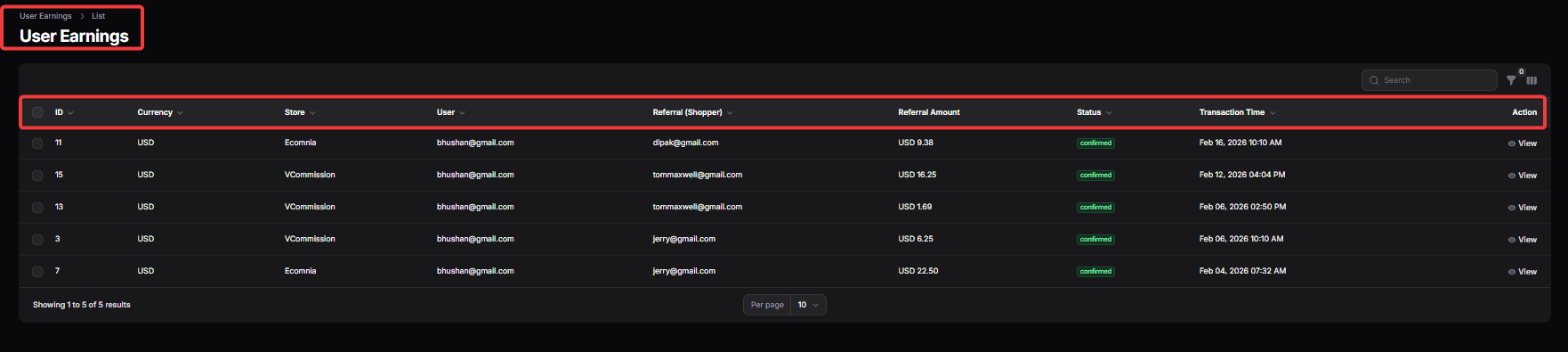
ID: A unique tracking number assigned to each individual record, used for internal auditing and distinguishing between different referral rewards.
Currency: The specific monetary unit (e.g., USD) in which the transaction was processed and the resulting reward is valued.
Store: Identifies the merchant or affiliate network (such as Ecomnia or VCommission) where the referred user's shopping activity took place.
User: The registered email address of the primary account holder who is receiving the bonus credit for the referral.
Referral (Shopper): The email address of the invited friend whose specific purchase triggered this earning for the primary user.
Referral Amount: The specific commission or monetary value rewarded to the primary user for successfully referring the shopper.
Status: Indicates the current state of the reward, typically showing as Confirmed once the network has verified the friend's purchase.
Transaction Time: The exact date and timestamp when the qualifying shopping event was officially recorded by the system.
Action: A functional link (e.g., View) used by administrators to open and manage the full details of the specific earning entry.